
The 2026 Pro's Guide to Optimizing Valorant: From FPS Boost to Precision Aim
Unlock peak Valorant performance in 2026 with these optimized Valorant settings and best FPS configurations for a decisive competitive edge.
In the hyper-competitive arena of Valorant, where milliseconds separate victory from defeat, mastery extends far beyond sharp reflexes and deep map knowledge. As of 2026, the game's technical landscape has evolved, yet the foundational principles of optimization remain the bedrock of competitive performance. Many dedicated players find themselves inexplicably plateauing in lower ranks, their hours of practice yielding diminishing returns. The culprit is often not a lack of skill, but a misconfigured digital battleground. Fine-tuning both in-game and system-level settings is not merely a suggestion; it is the silent, crucial partner to raw talent, acting as the precision scalpel to a surgeon's steady hand or the perfectly tuned engine in a championship race car.
In-game Valorant Settings For Peak Performance
Riot Games offers a plethora of customization options, but prioritizing competitive integrity over visual flair is non-negotiable. The wrong settings can cap your potential like a bird with clipped wings. Here are the optimized configurations for 2026's competitive scene.
General Video Settings

This foundational layer is critical for maximizing your Frames Per Second (FPS), the lifeblood of any tactical shooter.
-
Display Mode: Fullscreen
-
Resolution: Your monitor's native resolution (e.g., 1920x1080)
-
Frame Rate Limit: Off (Let your hardware push as many frames as possible)
-
NVIDIA Reflex Low Latency: On + Boost (Essential for minimizing system latency)
-
Multithreaded Rendering: On (Utilizes multiple CPU cores for better performance)
Graphics Quality Settings

The mantra here is "Performance over Fidelity." Every setting should be dialed down to reduce visual clutter and GPU load, ensuring the highest, most stable FPS.
| Setting | Recommended Value | Reasoning |
|---|---|---|
| Material Quality | Low | Reduces texture detail, freeing GPU resources. |
| Texture Quality | Low | Ensures fastest texture streaming. |
| Detail Quality | Low | Minimizes background object complexity. |
| UI Quality | Low/Med | Has negligible impact on FPS. |
| Vignette | Off | Removes the darkening effect at screen edges for clearer vision. |
| VSync | Off | Introduces input lag; a cardinal sin for competitive play. |
| Anti-Aliasing | MSAA 4x | A slight exception. Smooths jagged edges, aiding target identification. |
| Anisotropic Filtering | 4x | Improves clarity of textures at angles. |
| Improve Clarity | On | Enhances sharpness. |
| Bloom | Off | Removes blinding light effects. |
| Distortion | Off | Removes warping visual effects. |
| Cast Shadows | Off | Shadows can be misleading; removing them offers pure visual clarity. |
Quality of Life & Map Settings
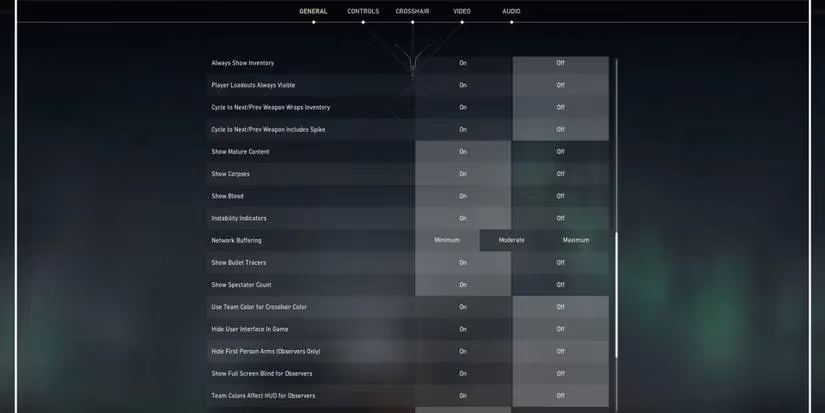
These settings refine your interface and awareness, turning the minimap from a decorative element into a strategic oracle.
-
Enemy Highlight Color: Yellow (Protanopia) or Purple (Tritanopia). These high-contrast colors often stand out better against Valorant's maps than the default red.
-
Minimap Size: 1.0 - 1.2 (Increase for better situational awareness).
-
Minimap Zoom: 0.7 - 0.9 (Allows you to see more of the map at once).
-
Keep Player Centered: Off (Gives a rotating, full-context view).
-
Show Map Region Names: Always (For clear callouts).
Audio Settings

Sound in Valorant is as important as sight. Footsteps, ability cues, and weapon switches are the game's whispered secrets.
-
Master Volume: Personal preference, but loud enough to hear subtle cues.
-
Sound Effects Volume: 100% (Crucial for hearing footsteps and abilities).
-
Voice-Over Volume: 70-80% (Lowers agent barks so they don't drown out game sounds).
-
Video Volume: 0% (Unnecessary distraction).
-
Enable HRTF: On (Provides superior 3D spatial audio for pinpointing sound direction).
🖥️ Essential 2026 PC Settings for Valorant
While in-game tweaks are vital, your operating system and drivers are the canvas upon which the game is painted. Optimizing them is like tuning a fine instrument before a concert.
1. Digital Vibrance / Saturation
This setting makes colors more vibrant, causing enemy player models to "pop" from the environment like neon signs in a fog.
-
For NVIDIA Users:
-
Right-click desktop -> NVIDIA Control Panel.
-
Navigate to Display -> Adjust desktop color settings.
-
Find the Digital Vibrance slider and increase it to 65-75%.
-
-
For AMD Users:
-
Open AMD Radeon Software.
-
Go to Gaming -> Display.
-
Enable Custom Color and increase the Saturation slider to a similar effect.
-
2. Disable Mouse Acceleration (Enhance Pointer Precision)
Mouse acceleration is the enemy of muscle memory. It makes your cursor travel a distance based on both how far and how fast you move the mouse, leading to inconsistent aim. Turning it off ensures your aim is as predictable and reliable as a Swiss watch.
-
Open Windows Settings.
-
Go to Devices -> Mouse.
-
Click Additional mouse options.
-
In the Mouse Properties window, select the Pointer Options tab.
-
Uncheck the box labeled "Enhance pointer precision." ✅ Ensure this is OFF!
-
Set pointer speed to the 6th tick (the default middle), which represents a 1:1 input with no Windows multiplier.
3. High DPI Scaling Override
This prevents Windows from interfering with the game's scaling, ensuring your mouse input is raw and unprocessed.
-
Locate your
VALORANT.exe(typically inRiot Games\VALORANT\live). -
Right-click it and select Properties.
-
Go to the Compatibility tab.
-
Click Change high DPI settings.
-
Check the box for "Override high DPI scaling behavior."
-
Set the scaling to be performed by: Application.
4. Windows Game Mode & Background Apps
-
Game Mode: In Windows Settings (
Gaming -> Game Mode), ensure it is On. In 2026, it effectively prioritizes game resources. -
Background Apps: Go to
Privacy -> Background appsand disable unnecessary applications from running in the background.
Summary: The Path to Optimization
Mastering Valorant in 2026 is a dual pursuit: honing human skill and calibrating machine efficiency. Treat your settings not as a one-time setup, but as a living configuration. Revisit them periodically, especially after major game or driver updates. By implementing these in-game and PC optimizations, you remove artificial barriers to performance. Your aim becomes a direct extension of your intent, your awareness sharpens, and the game responds with the crisp, immediate feedback required to climb the ranks. Remember, in the arena where every millisecond counts, a perfectly optimized setup is your most reliable teammate.